Before Docker existed, shipping software between environments was genuinely frustrating. You’d build an application on your laptop, it would work perfectly, and then you’d deploy it to a test server and half the things would break — because the server had a different version of Node.js, or a different Python library, or a different operating system configuration. “Works on my machine” became a running joke in software development for a reason.
Docker solved this problem in a surprisingly elegant way. It lets you package your application along with everything it needs — the runtime, libraries, configuration files, and dependencies — into a single portable unit called a container. That container runs the same way everywhere: on your laptop, on a colleague’s Windows machine, in a CI/CD pipeline, and in production.
Containers vs Virtual Machines — the Key Difference
The most common question when people first hear about containers is: “How is this different from a virtual machine?” It’s a fair question because they solve a similar problem.
A virtual machine (VM) includes a full copy of an operating system — the kernel, drivers, system libraries, everything. That’s why a VM image might be several gigabytes and take minutes to boot. The hypervisor (software like VMware or VirtualBox) emulates physical hardware for each VM, which adds overhead.
A container doesn’t include a full operating system. It shares the host machine’s operating system kernel and just packages the application and its dependencies. This means containers are much smaller (megabytes instead of gigabytes), start in seconds rather than minutes, and use significantly less memory.
Think of it this way: a VM is like renting an entire apartment when you just need a desk to work at. A container is like renting just the desk in a shared office building — you share the building’s infrastructure (electricity, internet, elevator) but have your own private workspace.
Three Core Docker Concepts
Images — The Blueprint
A Docker image is a read-only template that describes what your container should contain. It includes the operating system layer, your application code, installed libraries, and startup instructions. Think of it as a recipe — the image itself doesn’t run, but you use it to create containers that do.
Images are built from a text file called a Dockerfile. Here’s a simple one for a Python web application:
FROM python:3.11-slim

WORKDIR /app

COPY requirements.txt .
RUN pip install -r requirements.txt

COPY . .

CMD ["python", "app.py"]
Each line in the Dockerfile creates a layer in the image. Docker caches these layers intelligently — if your requirements.txt hasn’t changed, it won’t reinstall all your dependencies on the next build. This makes builds fast.
Containers — The Running Instance
A container is a running instance of an image. You can run multiple containers from the same image simultaneously — each one is isolated from the others, with its own filesystem, network, and processes. If one container crashes, it doesn’t affect the others.
The basic commands you’ll use most:
# Build an image from a Dockerfile in the current directory
docker build -t my-app:v1 .

# Run a container from the image
docker run -p 8080:8080 my-app:v1

# See running containers
docker ps

# Stop a container
docker stop container-id

# See logs
docker logs container-id
Docker Hub — The Image Registry
Docker Hub is a public registry where people share pre-built images. Instead of building everything from scratch, you start from official images. Want to run a PostgreSQL database? Instead of installing it manually, you run:
docker run -e POSTGRES_PASSWORD=mypassword -p 5432:5432 postgres:15
Within seconds you have a fully running PostgreSQL database. No installation. No configuration. Just a running database you can connect to immediately. This is enormously useful during development.
Docker Compose: Running Multiple Services Together
Real applications rarely consist of a single service. A typical web application might have a frontend, a backend API, a database, a cache, and a background job processor — five separate services that need to talk to each other.
Docker Compose is a tool for defining and running multi-container applications. You describe all your services in a single YAML file called docker-compose.yml, and then start everything with one command.
Here’s an example for a web application with a Python backend and a PostgreSQL database:
version: '3.8'

services:
  web:
    build: .
    ports:
      - "8080:8080"
    environment:
      - DATABASE_URL=postgresql://user:password@db:5432/myapp
    depends_on:
      - db

  db:
    image: postgres:15
    environment:
      POSTGRES_USER: user
      POSTGRES_PASSWORD: password
      POSTGRES_DB: myapp
    volumes:
      - postgres_data:/var/lib/postgresql/data

volumes:
  postgres_data:
Now to start both services together:
docker-compose up
Both containers start, Docker creates a private network so they can communicate (the web service reaches the database using the hostname “db”), and the database’s data is persisted to a volume so it survives container restarts. This replaces what used to require hours of server configuration.
Volumes: Keeping Data Safe
Containers are designed to be ephemeral — when you stop and remove a container, anything stored inside it is gone. For stateless applications like web servers, that’s fine. But for databases, file storage, and anything that needs to persist data between container restarts, you need volumes.
A volume is a special directory that exists outside the container’s lifecycle. Even if you delete the container, the data in the volume remains. You can attach the same volume to a new container and all your data is still there.
Networking: How Containers Talk to Each Other
By default, containers are isolated from each other and from the outside world. To allow communication, Docker provides networking options.
When you use Docker Compose, it automatically creates a private network for all the services in your file. Services can reach each other using their service names as hostnames — so your web service can connect to the database at the hostname “db” without knowing its IP address.
To make a service accessible from your laptop or the internet, you map a container port to a host port using the -p flag. Running -p 8080:80 means: traffic arriving at port 8080 on the host gets forwarded to port 80 inside the container.
Docker in a CI/CD Pipeline
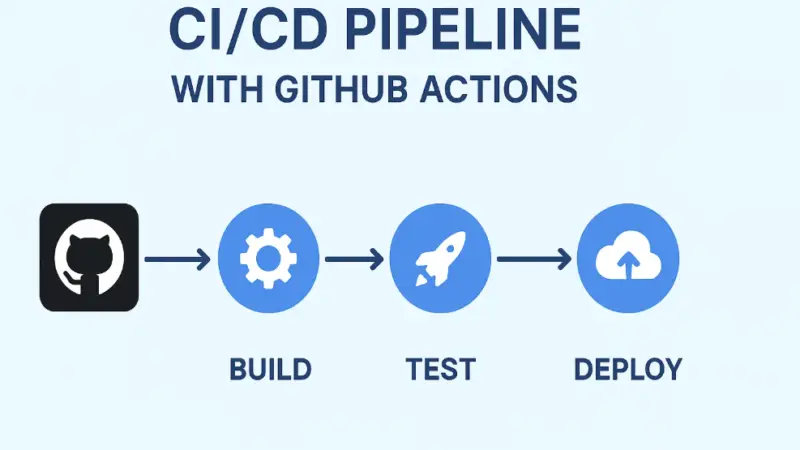
One of Docker’s most valuable use cases is in continuous integration and deployment. Because containers are identical regardless of where they run, you can build a Docker image in your CI pipeline (GitHub Actions, GitLab CI, Jenkins), run your automated tests inside that image to make sure everything works, and then push the exact same image to production.
This eliminates an entire category of “it worked in CI but broke in production” bugs — because the environment is literally identical. The container you tested is the container you deployed.
Common Mistakes When Starting With Docker
Running as root inside containers. By default, processes inside containers run as the root user. It’s better practice to create a non-root user in your Dockerfile and switch to it. This limits potential damage if a container is ever compromised.
Not using a .dockerignore file. Just like .gitignore, a .dockerignore file tells Docker which files to exclude from the image. Without it, you might accidentally include large directories like node_modules, your local .env file with secrets, or your entire git history — making your image unnecessarily large.
Storing secrets in images. Never put passwords, API keys, or other secrets directly in your Dockerfile or in the image. Use environment variables at runtime or a secrets management service like AWS Secrets Manager or HashiCorp Vault.
Building large images unnecessarily. Using minimal base images (the -slim or -alpine variants) instead of full OS images can reduce your image size by 70-90%. Smaller images transfer faster, start faster, and have a smaller attack surface.
Where to Go Next
Once you’re comfortable with Docker basics, the natural next step is Kubernetes — the system for orchestrating containers across multiple servers at scale. But don’t rush there. Spend time with Docker Compose first. Build a real multi-service application. Get comfortable with volumes, networking, and writing good Dockerfiles. That foundation makes Kubernetes much easier to understand when you get there.
Docker’s official documentation is excellent and includes interactive tutorials you can run in your browser without installing anything. That’s genuinely the best place to start if you want hands-on practice today.